Application Development
Most example you having see in the Get Started section is small single file. It will be case for many use case perticular for diagrams. Feel free to use your favourte editor editors or IDE to edit the tsx or yaml files.
VS Code
We recommend VS Code with Dev Containers extension. Once you have those installed, you may use following command to open your project. Other VSCode based IDE ( e.g. Cursor ) may also work but didn't tested intensively.
dinghy devcontainer
You may run dinghy devcontainer or dinghy dc in the project folder to open
your project in devcontainer. The devcontainer is a full-featured development
environment which has deno language server running which give you nice
autocomplete developer experience.
The devcontainer is where Dinghy Engine lives, so you can run engine command directly.
Claude Code
Dinghy ships with skills for Claude Code that teach the AI assistant how to work with Dinghy projects.
dinghy skill
Run dinghy skill to install or update Dinghy skills to your .claude/skills
directory. The command auto-detects the skills folder location from either a
project-level .claude/skills or user-level ~/.claude/skills.
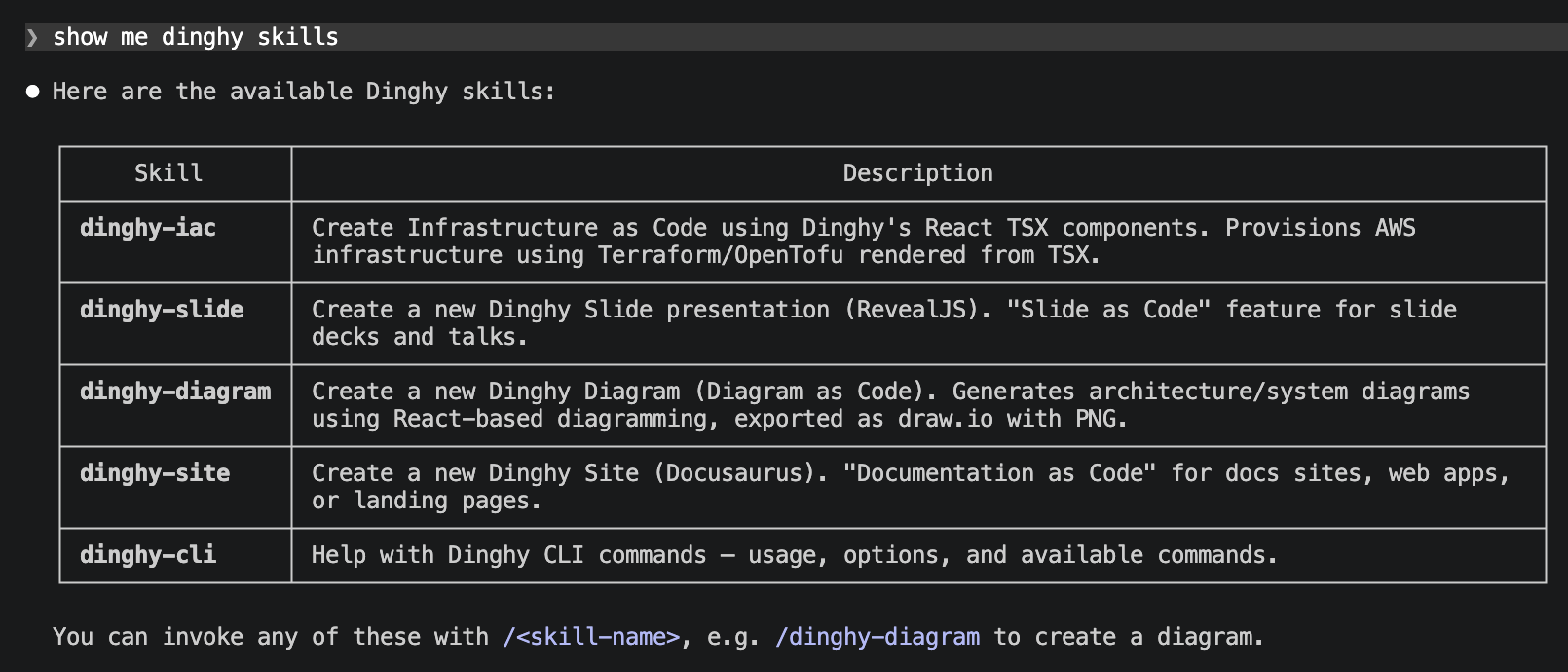
The following skills are included:
- dinghy-cli — Help with Dinghy CLI commands
- dinghy-diagram — Create diagrams as code using React TSX and draw.io
- dinghy-slide — Create RevealJS presentations as code in YAML/Markdown
- dinghy-iac — Infrastructure as Code with Terraform templates
Once installed, you can use slash commands like /dinghy-slide or
/dinghy-diagram in Claude Code to generate Dinghy projects with AI assistance.